How it works
RiskQuake Response helps your crisis management team practise and then handle the real thing. Run realistic exercises and call-out tests to build the habits, and use the same tool to run a real incident when it happens.
The Risk module (a lean risk register linked to your risk appetite) is coming soon. This page covers Response.
Screenshots show Coastal Care Services, a made-up sample organisation. Select a picture to see it full size.
Running an exercise in four steps
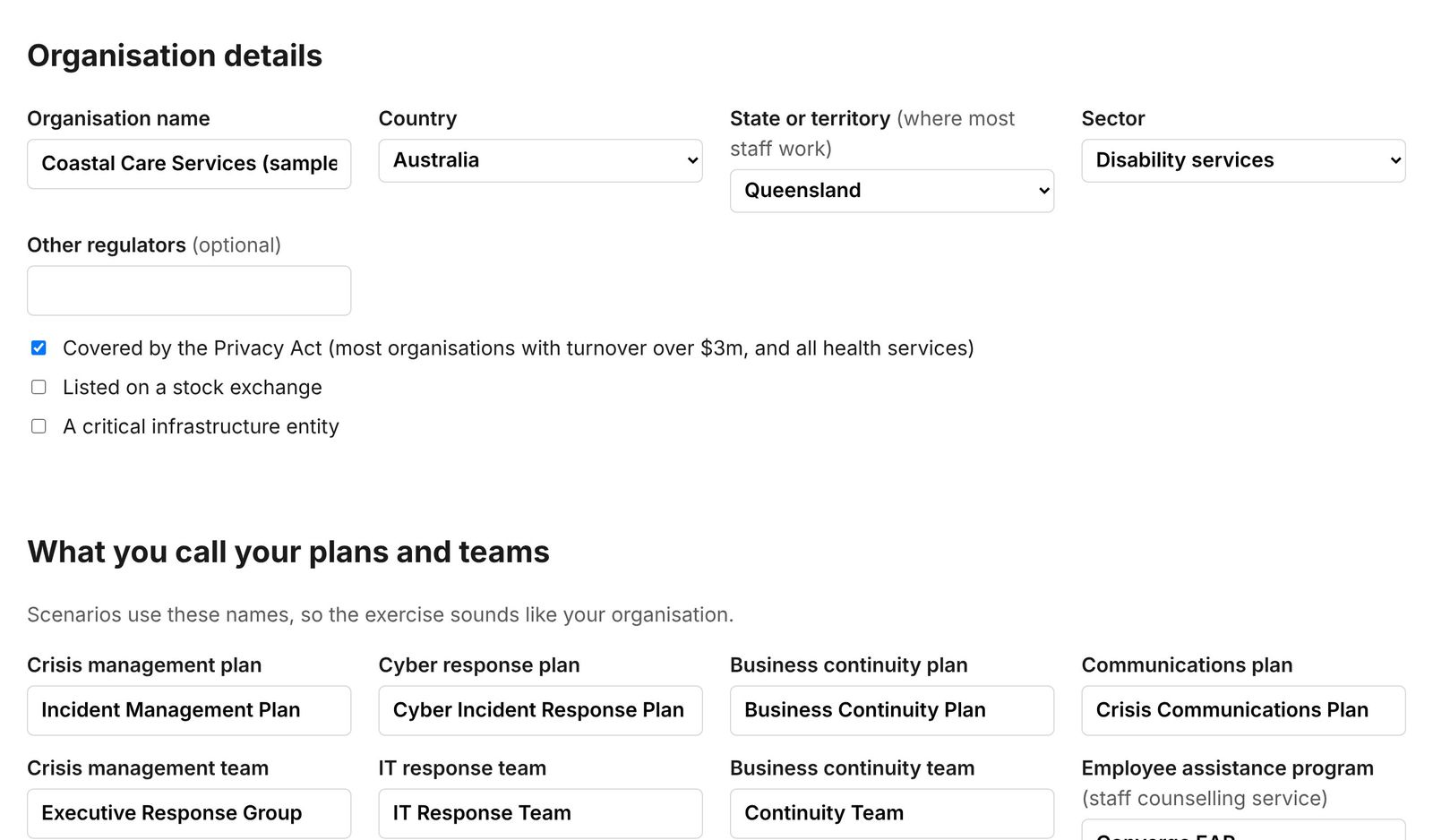
- Set up onceAdd your people and their crisis roles, sites, key systems, suppliers and plans. Choose your sector and state, and the scenarios name the regulators that usually apply to organisations like yours (for you to check with your adviser).
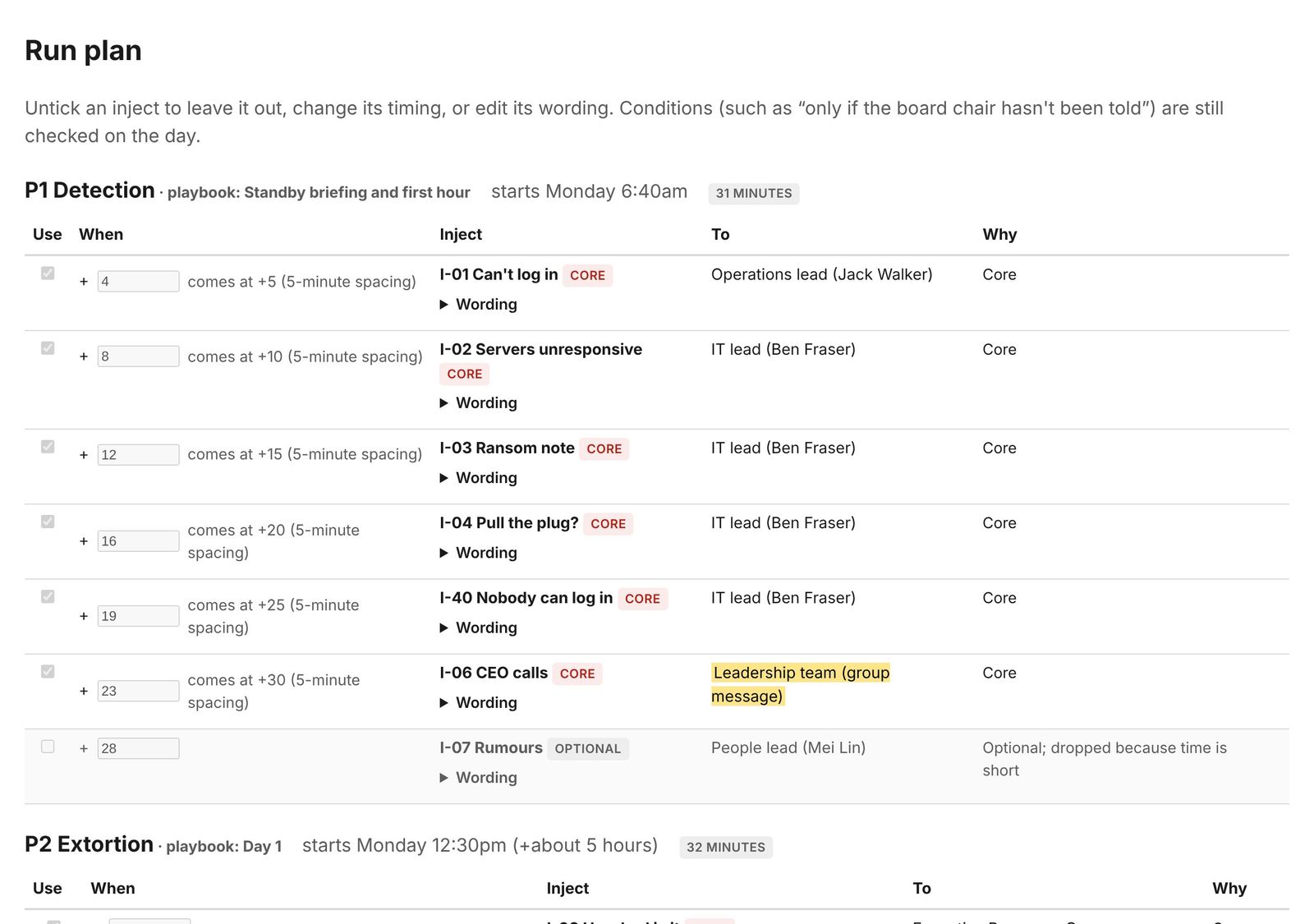
- Plan the exercisePick a scenario, the team's maturity and how long you have. You get a run plan you can review and change.
- Run it liveThe projector shows the room what is happening, you steer from a private control screen, and the scribe logs decisions and actions.
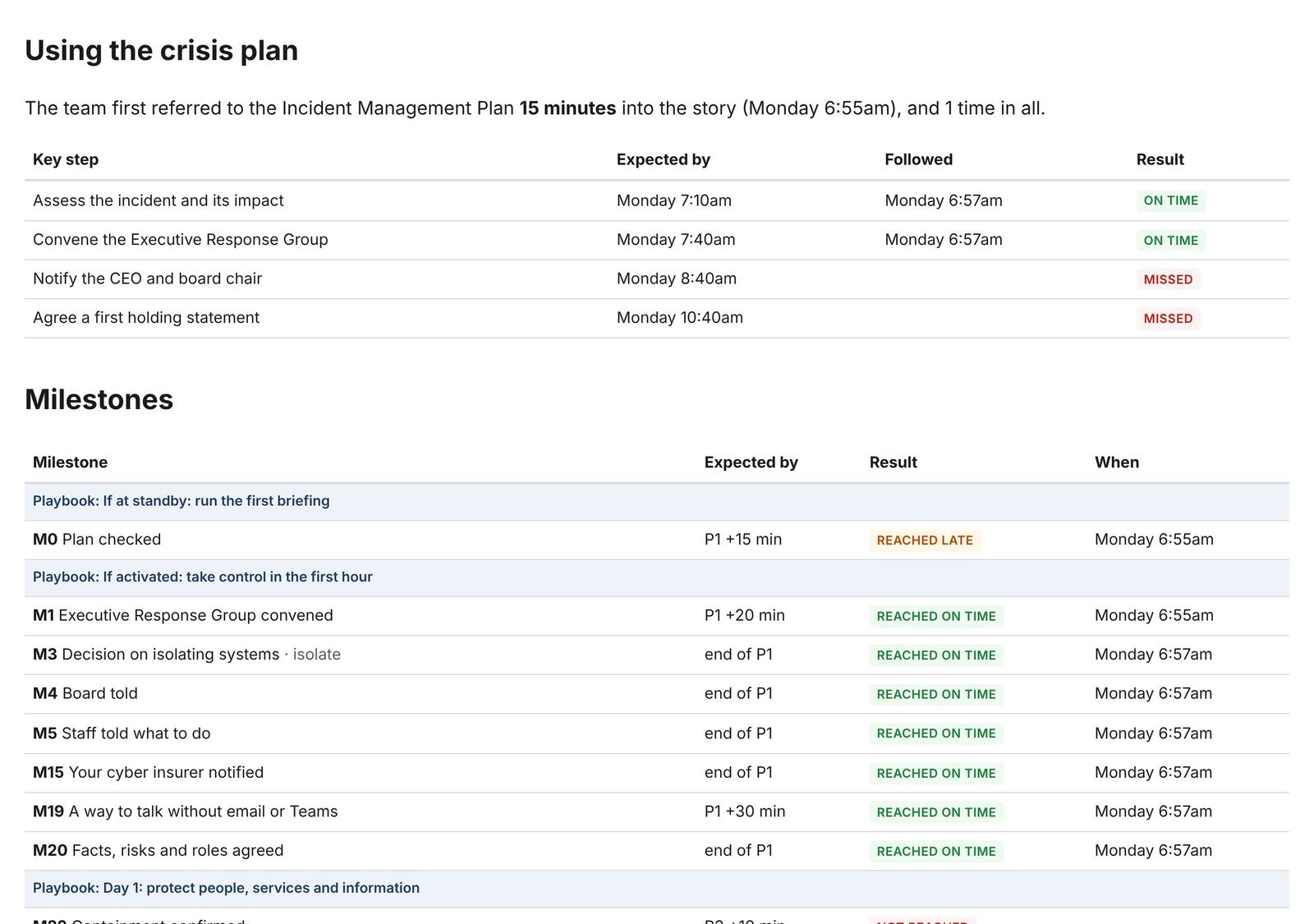
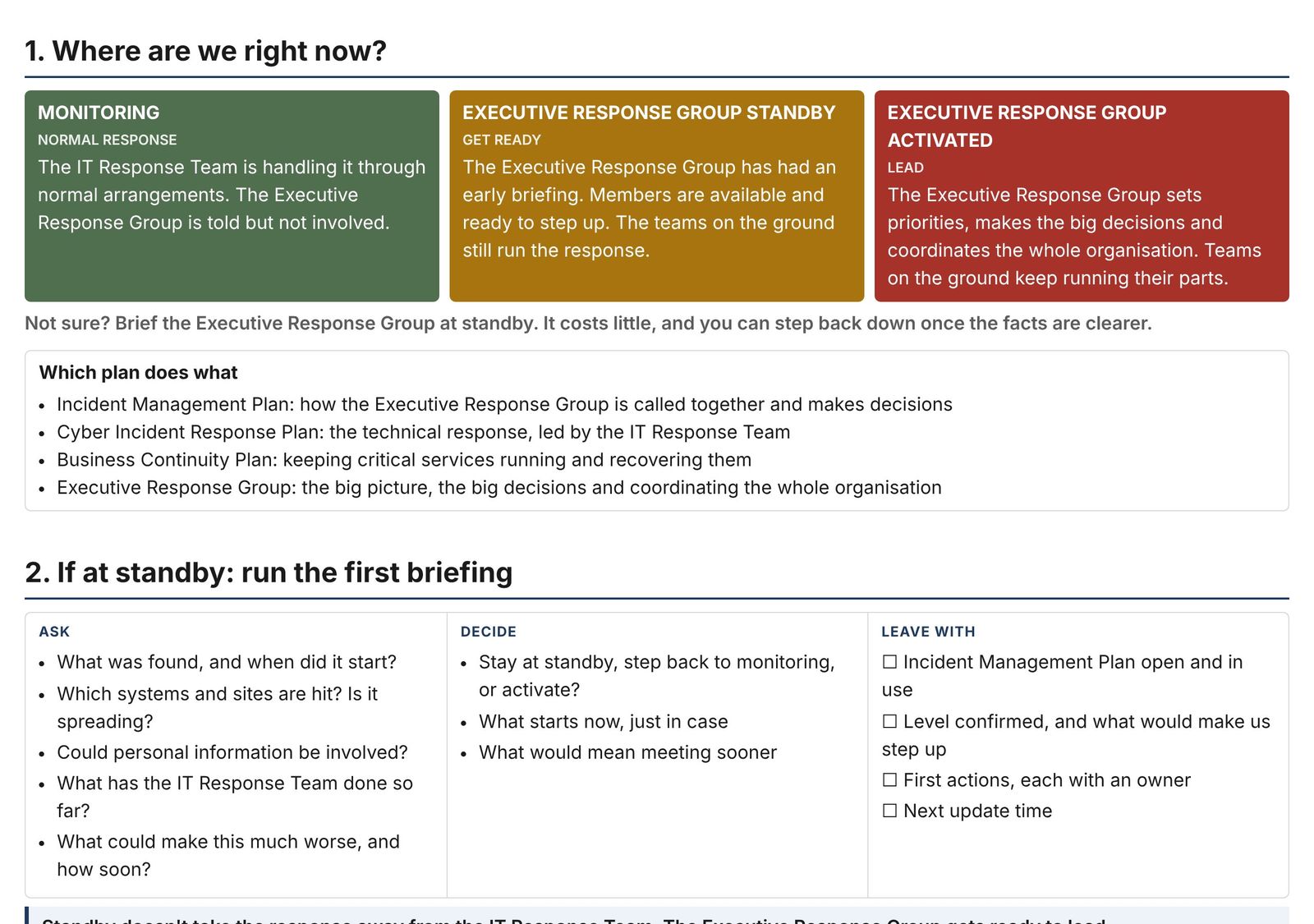
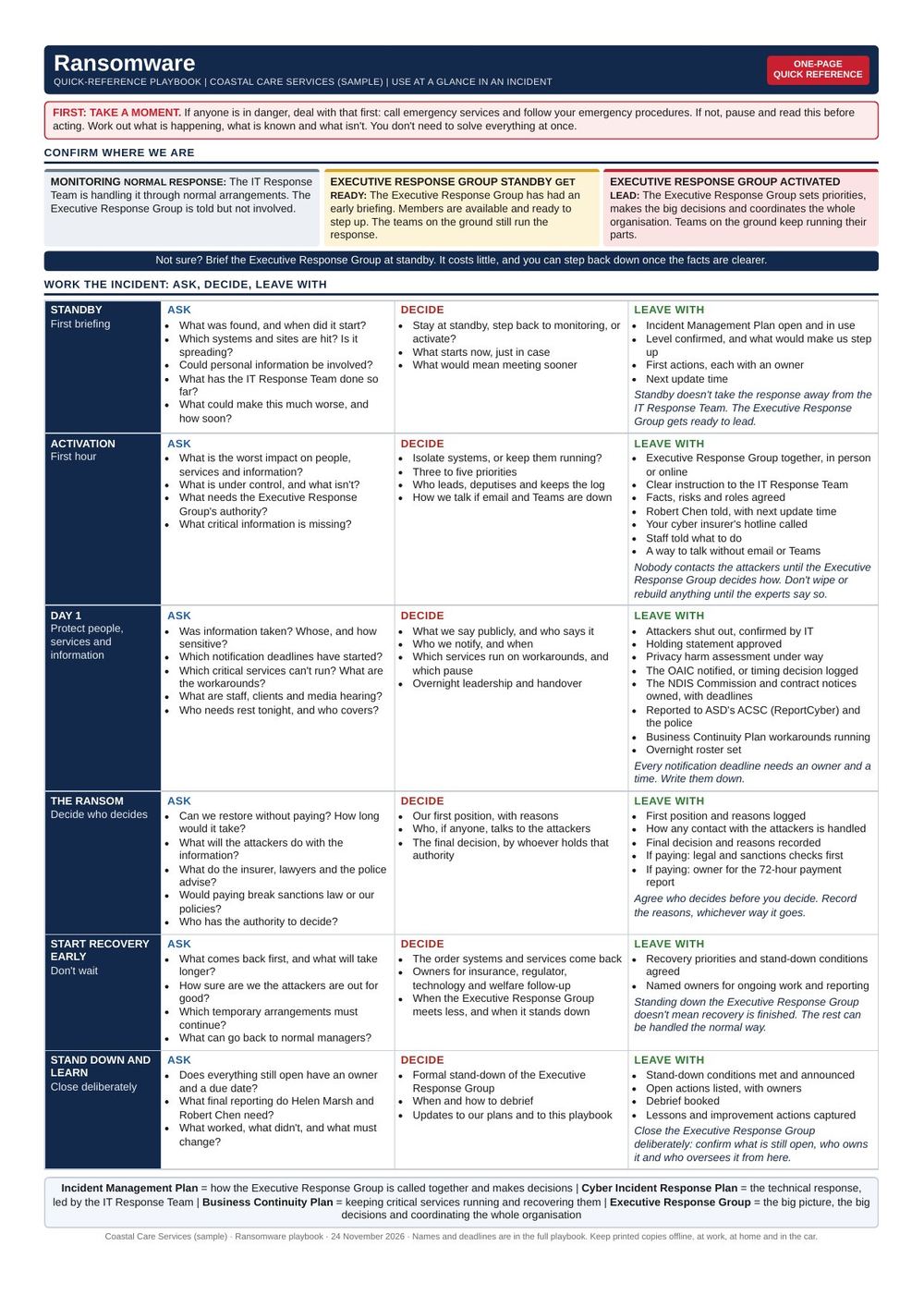
- DebriefEverything that happened becomes a debrief you can print, save as a PDF or export as a spreadsheet, and a playbook to keep for a real incident.
Who sees what
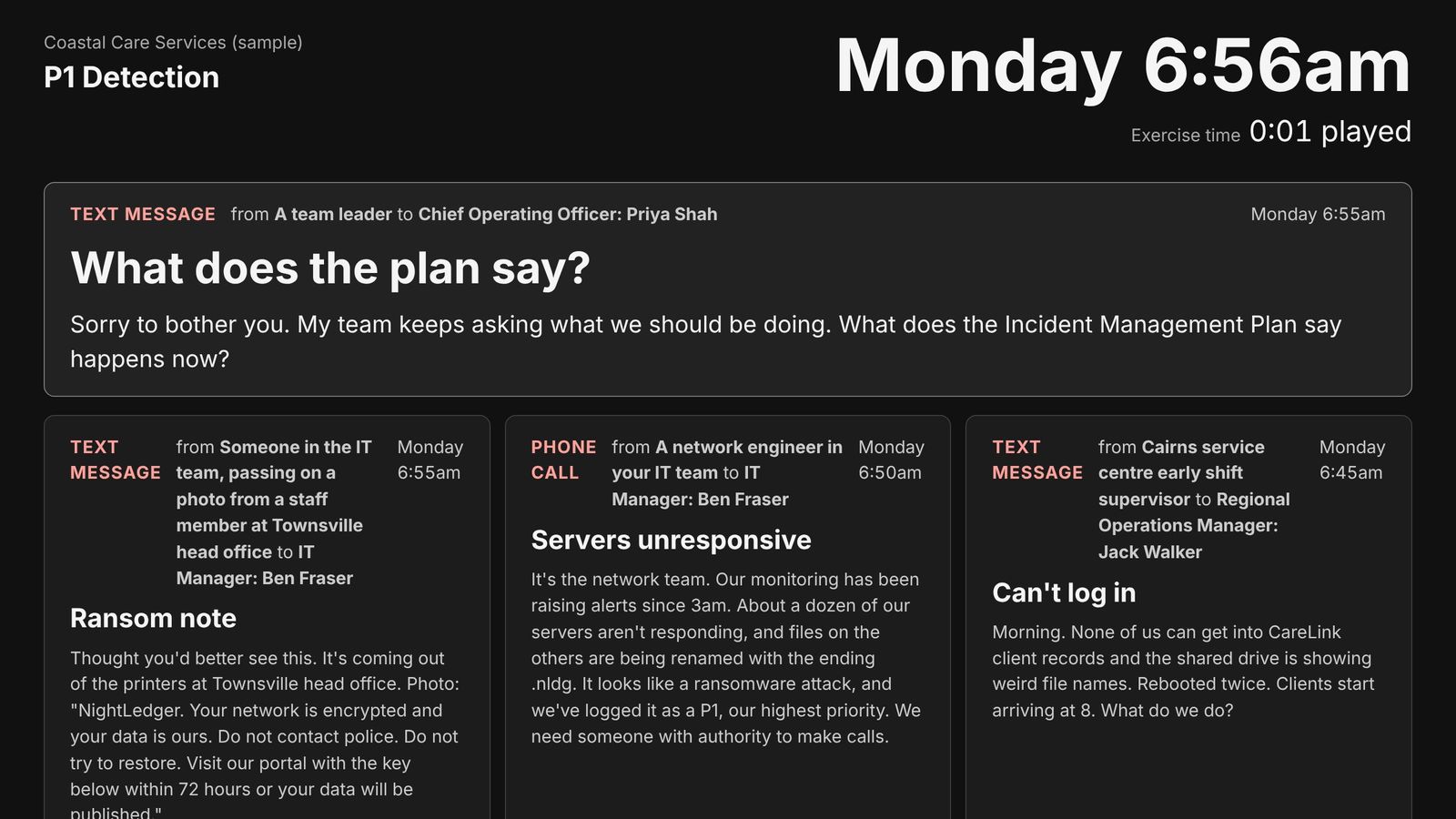
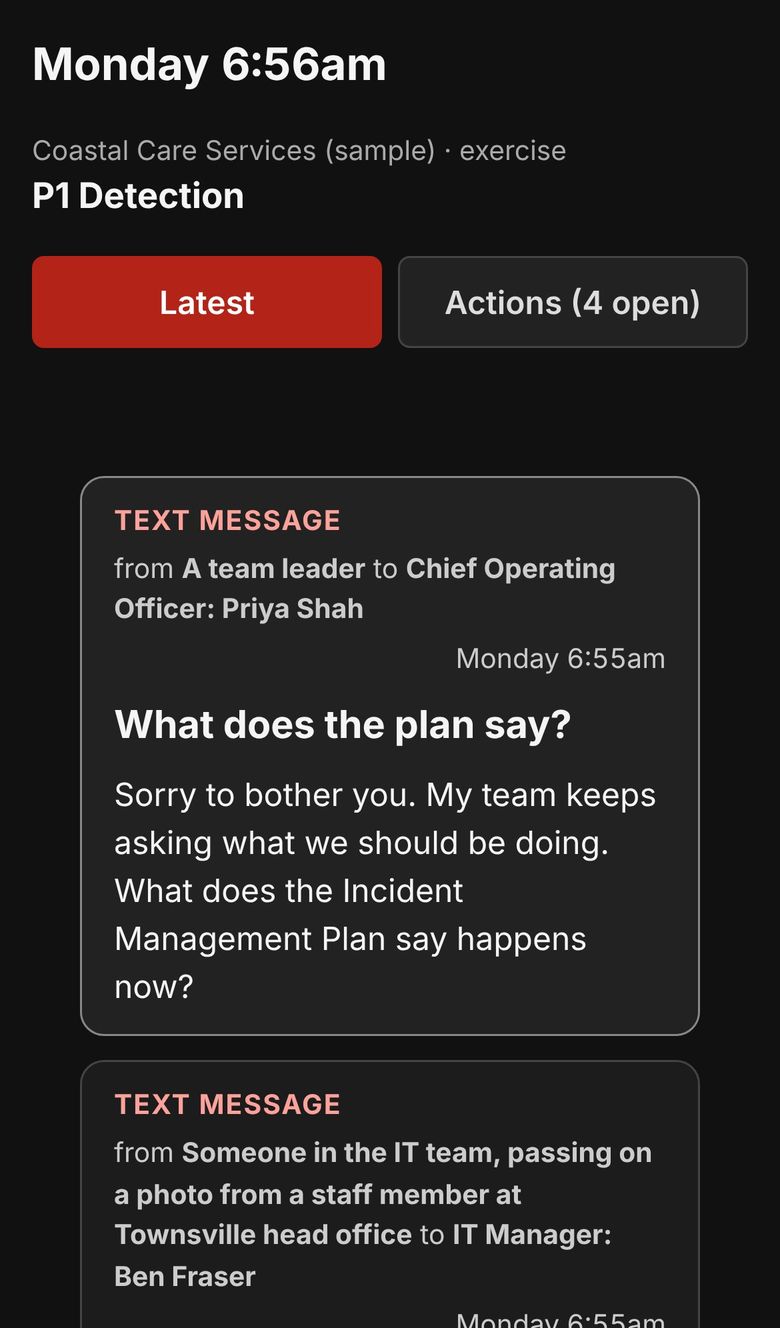
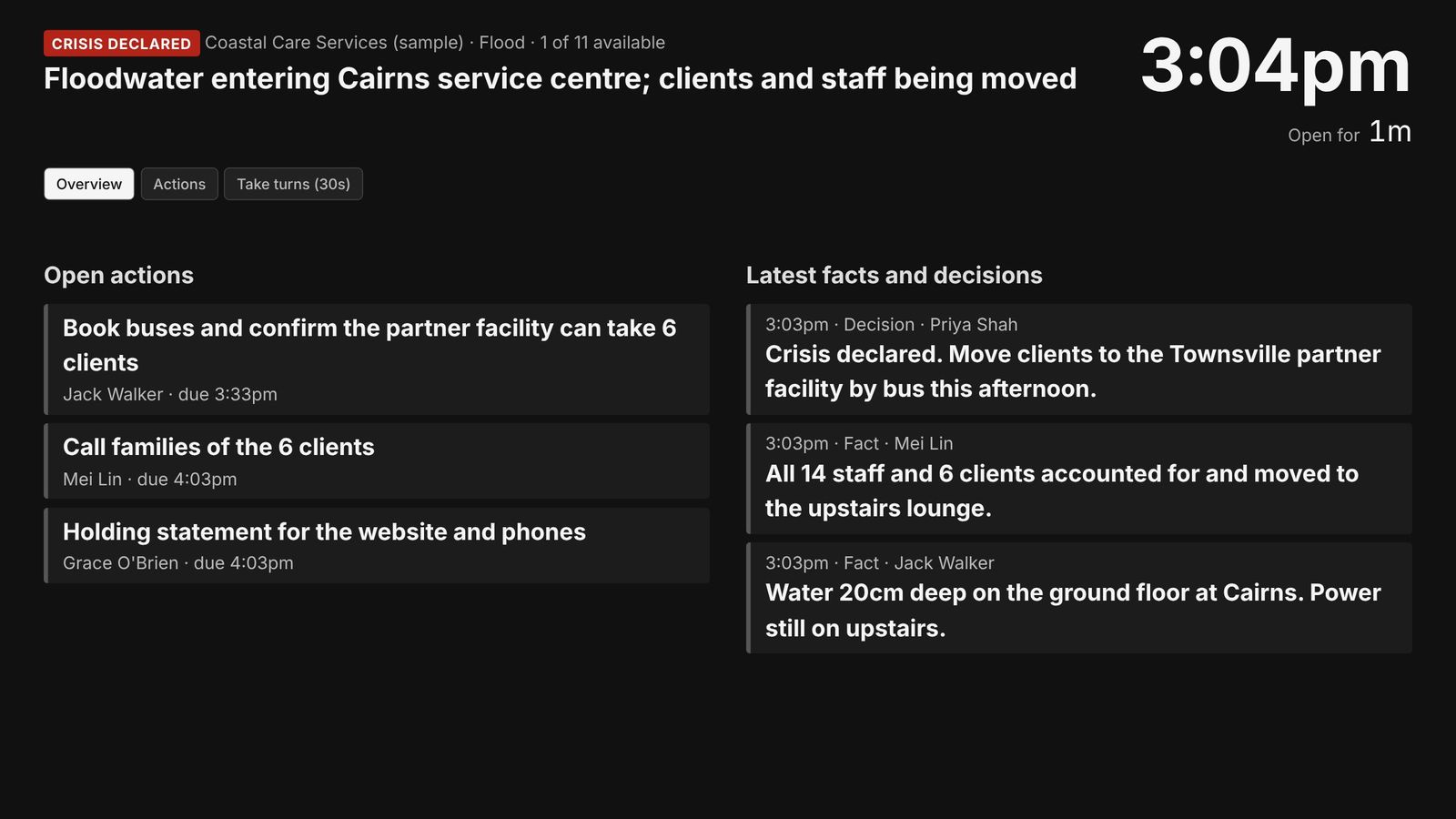
- The roomA projector or TV shows the scenario clock and each new piece of information as it arrives. People joining remotely can follow through screen sharing.
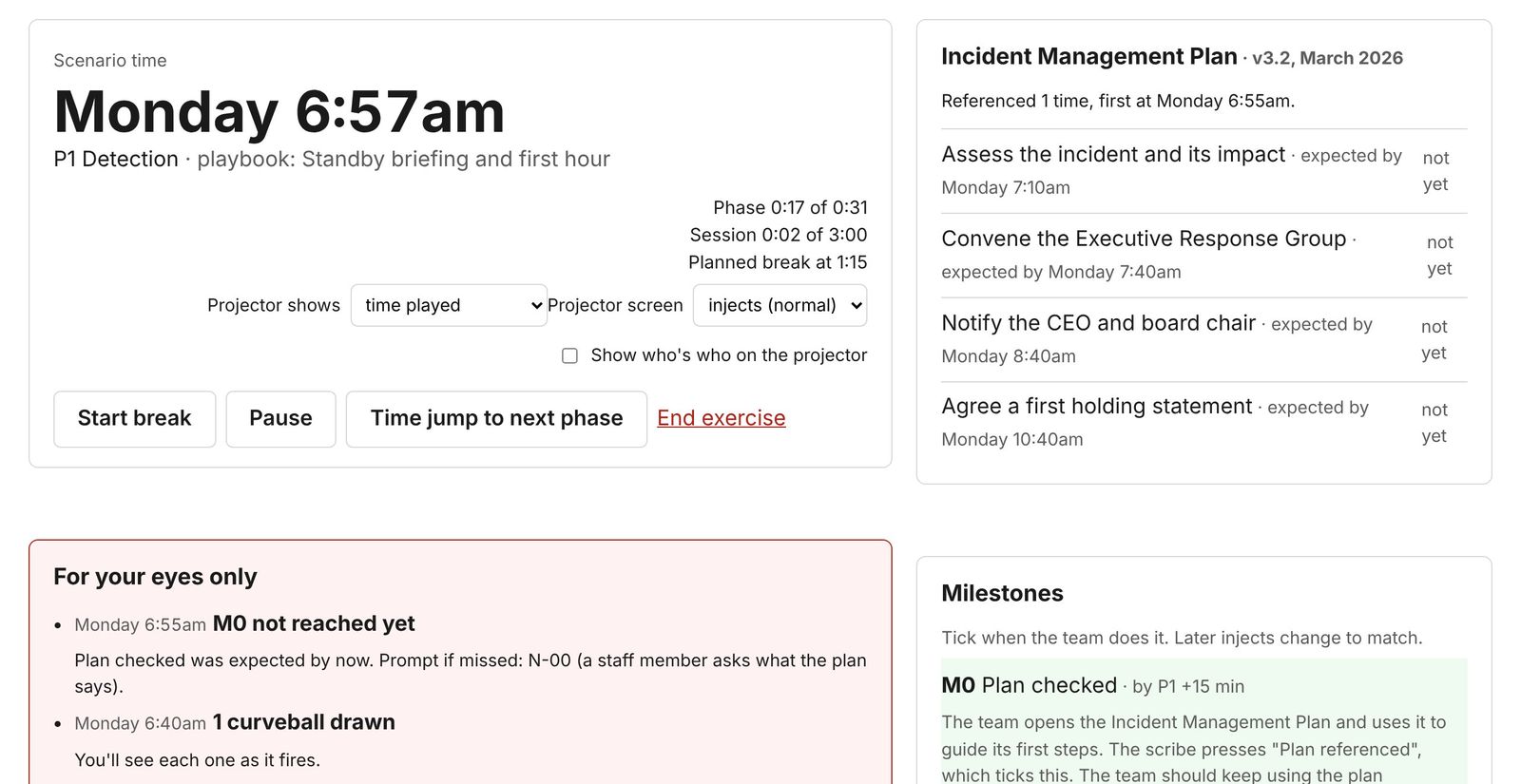
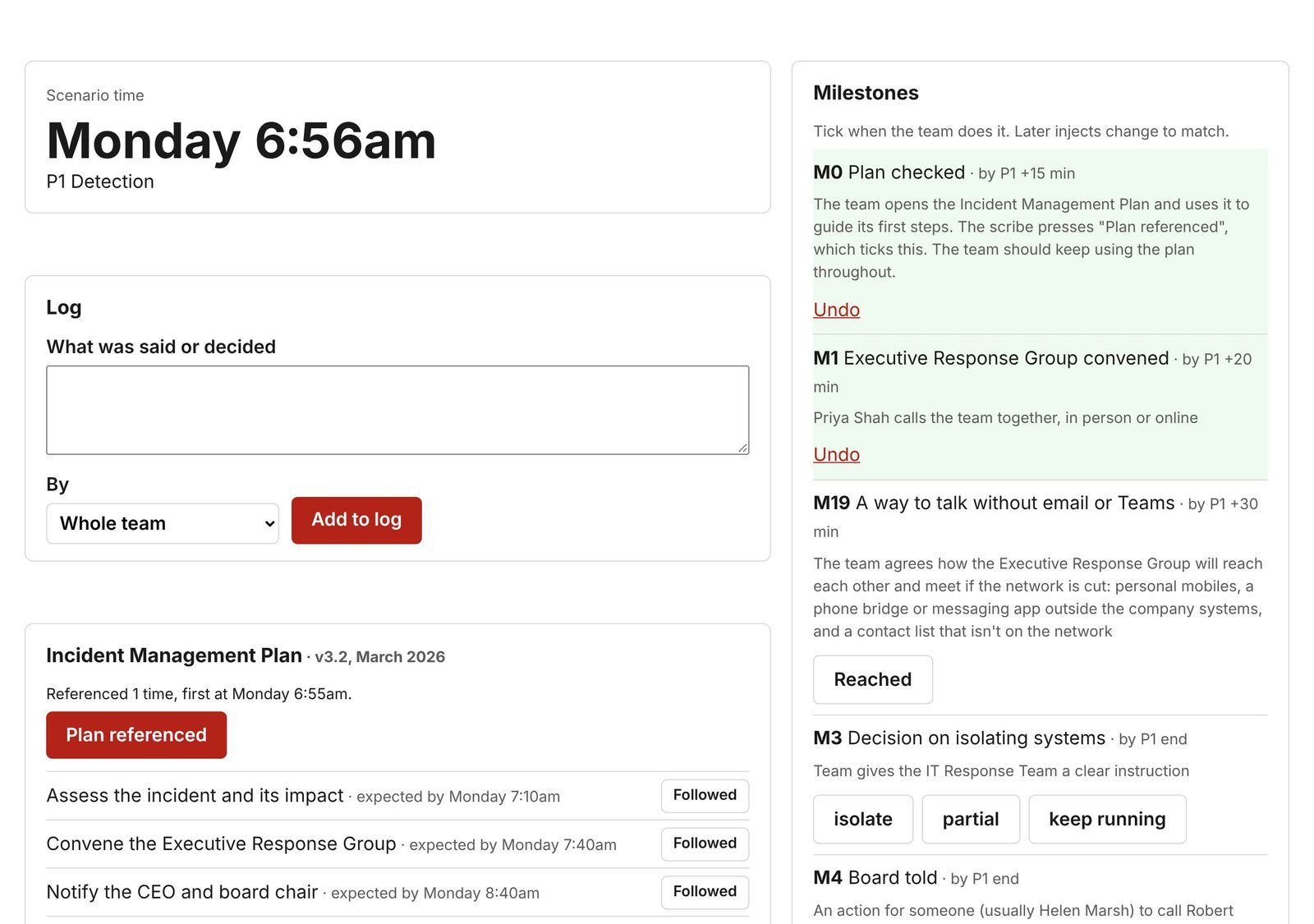
- The facilitatorA private control screen shows what's coming next, lets you jump time forward, release a curveball or adjust the plan on the fly, and tracks the milestones the team reaches.
- The scribeLogs decisions and actions with an owner and due time. The tool prompts for an update when an action falls due.
Three ways to run it
- SlidesSet it up here, then run it from the PowerPoint download. Afterwards, tick the milestones the team reached for a short debrief.
- Flying soloOne facilitator, no scribe. One screen for you (milestones first, quick notes and actions) plus the projector.
- Full teamSeparate facilitator, scribe and projector screens, with the full log and action board.
Ready-made scenarios
Each scenario is filled in with your organisation's own names, sites, systems, suppliers and regulators, and branches on what the team decides.
- RansomwareCriminals lock your systems, steal data and threaten to publish it unless a ransom is paid. Tests the decision on paying, regulators and keeping services going.
- Data breachCustomer records turn up for sale online, traced to a supplier. Tests notification, the Notifiable Data Breaches scheme and communications.
- Workplace siegeA staff member's former partner holds colleagues hostage at head office. Tests people safety, working with police and looking after staff.
- Reputation crisisA senior leader's offensive posts go viral once people link them to your organisation. Tests handling the public story while investigating quickly but fairly, and your social media rules.
- Severe weatherA cyclone or flood hits a site and its town. Tests warnings, people safety, recovery and keeping services going.
On the day of a real incident
The same tool helps when it's not an exercise. From the dashboard, press the red Start a real incident button (it sits apart from “Set up an exercise”, so nobody starts one by mistake).
- A clock and deadlinesAn elapsed clock from the moment you start, plus your own deadlines (for example a regulator report) with a countdown to each.
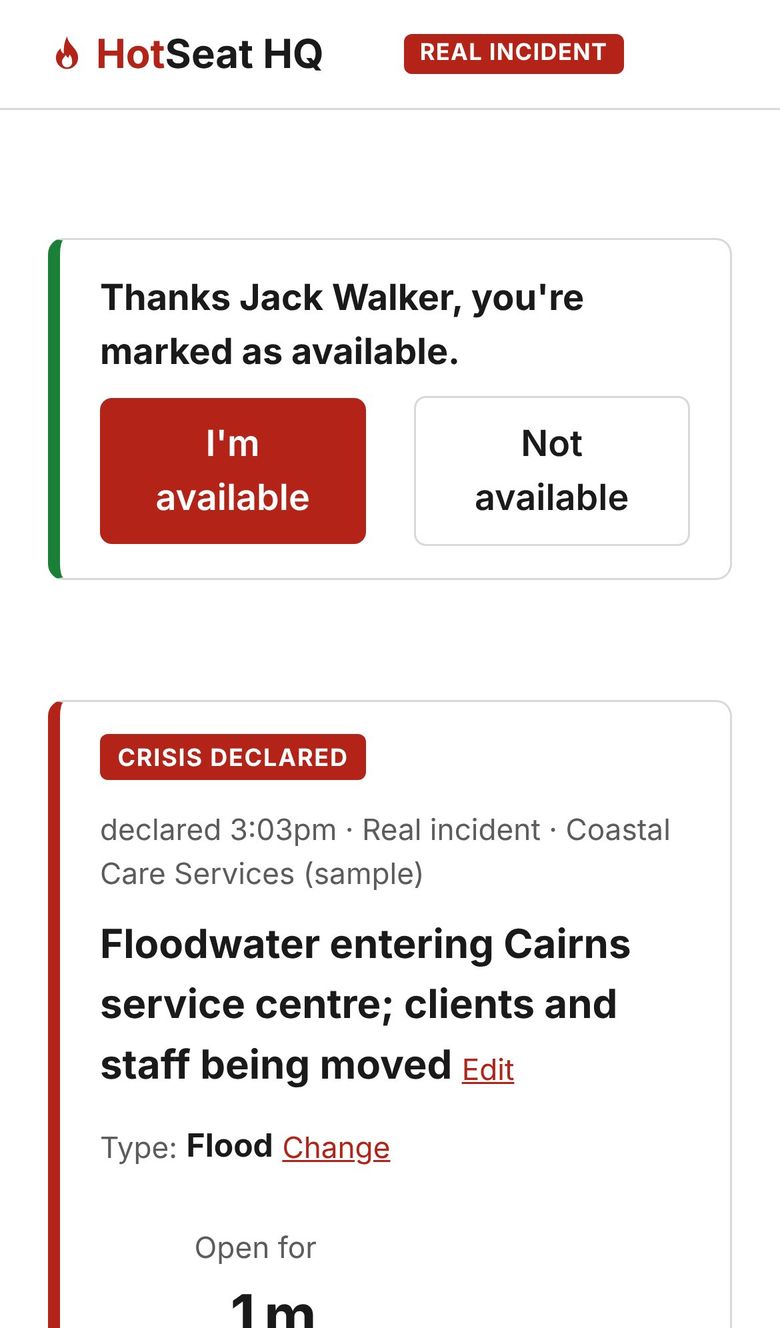
- Alert the crisis teamSend a Standby alert when something is developing, then a Crisis declared alert when you convene. People reply to say whether they're available. Alerts go by email now; text messages are coming soon.
- Log, actions and stepsA timed log of what happened and what was decided, an action board with owners and due times, the steps from your own plan (or a first-hour checklist), and contacts from your profile.
- The room screenA projector view with an Overview, a full-screen Actions board, or Take turns to switch between the two.
- A link for each personEach team member gets their own link (no login needed) that opens a phone view with Log, Actions, Steps and Contacts tabs. Links go by email now, and by text message once that's switched on.
- A record and an offline backupPrint a blank incident pack in advance in case systems are down, save a copy of the incident to your computer as you go, and print the full record afterwards.
Before a crisis
- Readiness briefsA one or two page printable overview of how a crisis usually unfolds after the first hour, for the kind of incident and your own crisis team. Flood, cyclone and bushfire also have a “before the season” version with a preparation checklist.
- Annual readiness checkA yearly checklist for the crises that come without warning: contacts and alternates, plans, backups, insurer details, holding statements and exercises. Pick a day and the app emails a reminder each year.
- Call-out testsAlert key staff at a realistic odd hour and record how quickly each person responds. Alerts go by email now; text messages are coming soon.
After the exercise
Everything that happened becomes a debrief you can print, save as a PDF or export as a spreadsheet. The team's steps become a playbook to keep for a real incident, and the next exercise checks the team against it.